

Every major platform lets a household share games, but each one draws the line in a different place. Steam Families lets up to six people in one household share their whole libraries, one player per copy at a time. On PS5, turn on Console Sharing and Offline Play on your main console and everyone who uses it can play your games. On Xbox, make a console your home Xbox and anyone who signs in there gets your games and your Game Pass. On Switch 2 and Switch, virtual game cards let you move games between two linked consoles or lend one to a family member for 14 days.
The short answer: Steam is the most generous, because sharing follows the account, not the console. PlayStation and Xbox share by console, so they suit families who play on one machine. Nintendo's system works like lending a cartridge, and the consoles have to be side by side to do it. Here's how to set up each one and what the limits are.
Family sharing on Steam, PS5, Xbox and Switch 2 compared
| Platform | How sharing works | Who can share | Same game at the same time? | Key limits |
|---|---|---|---|---|
| Steam Families | Libraries are shared between accounts | Up to 6 members of one household | Only with a second copy in the family | One-year cooldown after leaving; some games can't be shared |
| PS5 | Console Sharing and Offline Play on one PS5 | Everyone who uses that console | Not stated by Sony | One PS5 at a time; sharing with a friend's console isn't supported |
| Xbox | Home Xbox | Everyone who signs in to that console | Not stated, but your games also work on any Xbox you sign in to | Change your home Xbox up to five times a year |
| Switch 2 and Switch | Virtual game cards and lending | Two linked consoles, or family group members | No, only one console can play a card at a time | 14-day loans; up to 3 cards lent at once; consoles must be nearby |
How Steam Family Sharing works in 2026
Steam Families replaced the old Family Sharing and Family View features on September 11, 2024, when Valve launched it for everyone.
How to set up a Steam Family
Per Valve's user guide:
- In Steam, go to Account Details and open Family Management.
- Select Create a Family and give it a name.
- Select Invite a Member and find the account you want to add.
- Choose whether they join as an adult or a child.
Once someone joins, every shareable game in both libraries is shared automatically.
Steam Families rules and limits
- Up to six members of one household. Valve says Steam Families is "intended for a household of up to 6 close family members," and an account can be blocked from joining if its activity doesn't show it's in the same household.
- One player per copy. Valve's own example: with one copy of Portal 2 in the family, one person can play it at a time. Everyone else can play other games from the library.
- Your own progress. You keep your own saves and achievements, and shared games work offline if the game supports Family Sharing.
- Cooldowns. An adult who leaves must wait a year from joining their last family before joining another, and an empty slot can't be refilled for a year.
- What can't be shared: games that need a third-party key, account or subscription, free-to-play games and their DLC, games restricted in a member's region, and games the publisher has opted out.
- Cheating hurts the owner. If a family member cheats in your copy, you can be banned in that game too.
Adults can set parental controls and playtime limits for child accounts and approve their purchase requests. Children can't leave a family on their own.

How to gameshare on PS5: Console Sharing and Offline Play
PS5 sharing is tied to a console, not to people. Turn it on for the PS5 your family uses and anyone on that console can play your games.
How to turn on Console Sharing and Offline Play
Per PlayStation Support:
- Go to Settings, then Users and Accounts, then Other.
- Select Console Sharing and Offline Play.
- Select Enable.
It's on automatically for the first PS5 you sign in to, and it can only be on for one PS5 at a time, so turn it off on your old console before moving it.
What gets shared on PS5
Anyone who uses that PS5 can play the games you've bought and downloaded, even offline, and use some PS Plus benefits. Sony's PS Plus sharing page lists online multiplayer, downloaded monthly games and Game Catalog games, depending on your tier. Child accounts on the console get the same benefits, limited to age-appropriate content.
The popular "gameshare" trick of turning on console sharing on a friend's PS5 means signing in to your account on their console. Asked whether you can share PS Plus with a friend on another console, Sony's support page answers "No." Keep it in your household.
For someone in another house, Share Play is the official route: you stream your game to one visitor in a party, who can play as you or with you without owning it. The host needs PS Plus, sessions end after an hour, and only the host earns trophies.
How to share games on Xbox: your home Xbox
Xbox also shares by console, but your games follow you to any Xbox you sign in to.
How to set your home Xbox
Per Xbox Support:
- Press the Xbox button to open the guide.
- Go to Profile & system, then Settings, General, Personalization and My home Xbox.
- Select Make this my home Xbox.
Xbox home console rules and limits
- One home Xbox at a time. You can switch it up to five times in any one-year period, and customer support can't add more.
- What's shared: anyone who signs in to your home Xbox can play your digital games, DLC and Game Pass games, even when you're not signed in. Your games also play offline there.
- On other consoles: you can play your games on any Xbox you sign in to, and everyone there can play them while you're signed in and online.
- What isn't shared: account-specific items such as in-game currency and some one-time pre-order bonuses.
How to share games on Switch 2: virtual game cards and family groups
Nintendo added virtual game cards on April 30, 2025, per Nintendo Life. They work on Switch 2 and the original Switch, and treat digital games like cartridges you can hand around.
Moving games between your own consoles
You can link two consoles to your Nintendo Account, Switch 2 or Switch in any combination, and move cards between them, per Nintendo's virtual game card guide. Only one console can play a card at a time, but once it's loaded, it works offline and every user on that console can play it.
How to lend a game to a family member on Switch 2
Bring both consoles close together and connect them to the internet. Then, per Nintendo:
- On your console, open Virtual Game Cards from the HOME Menu and select your user.
- Select the game, then Lend to Family Group Member.
- Choose the family member and select Lend.
- On their console, they open Virtual Game Cards, select their user and choose Borrow.
Switch 2 lending rules and limits
- Family group only. The borrower must be in your Nintendo Account family group, which holds up to eight accounts.
- 14 days. The loan ends after 14 days, or sooner if they return it or you take it back. Your DLC goes with it, and they keep their save data. You can't play the game while it's out.
- Numbers. You can lend up to three cards at once, a borrower can hold one, and a console can only have one lent card on it.
- Exclusions. Some games don't support lending, games that come with Nintendo Switch Online can't be lent, and a console with users from different family groups can't lend or borrow.
For multiplayer, Switch 2's GameShare lets one Switch 2 share a supported game with nearby Switch 2 or Switch consoles, or with Switch 2 players online through GameChat.
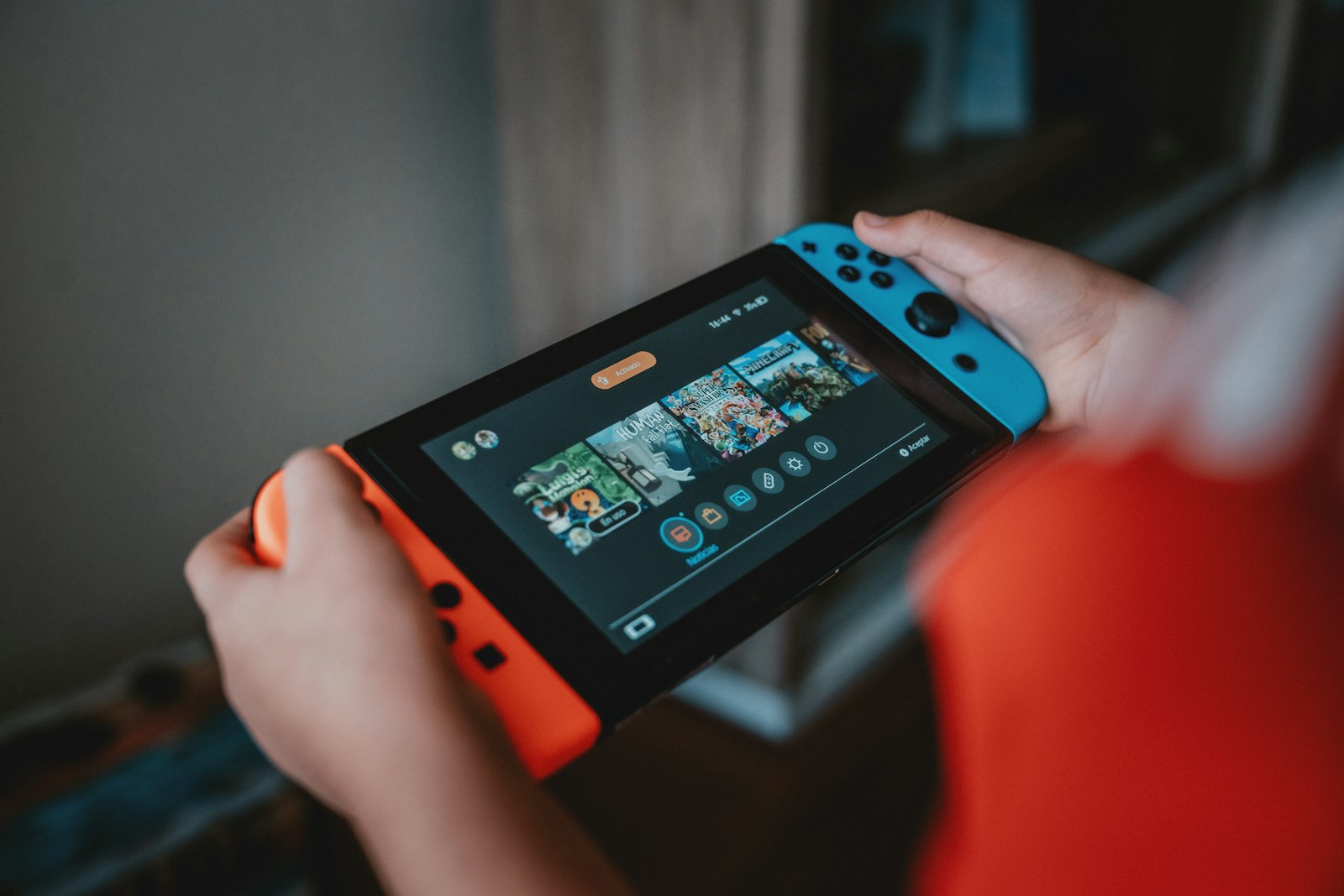
Which platform makes family sharing easiest?
For a family on separate devices, Steam Families wins: whole libraries, separate saves, and the only limit is copies. For a family that shares one console, PS5 and Xbox are simplest, since one setting covers everyone on that machine. Nintendo's lending takes more steps, but it's the only console system that lets a family member borrow a game for their own console. For friends outside your home, our guide to playing games with long-distance friends covers what works, and our post on which version of a game to buy helps when you're deciding whose account a game goes on.
A shared household also makes it easy to lose track of who bought what. Perthro keeps your own game library in one place, with a verified ownership badge on every game synced from Steam, PlayStation or Xbox, and Nintendo games added by hand.
Sources
- Steam News: Steam Families is here
- Steam Support: Steam Families user guide and FAQ
- PlayStation Support: How to turn on PS5 Console Sharing and Offline Play
- PlayStation Support: Share PlayStation Plus benefits on PlayStation consoles
- PlayStation Support: How to start Share Play on your PS5 console
- Xbox Support: How home Xbox and game sharing work
- Xbox Support: Sharing your Xbox Game Pass subscription
- Nintendo: Virtual game cards for Nintendo Switch and Nintendo Switch 2
- Nintendo Support: Virtual game card guide
- Nintendo Support: Lending virtual game cards to a family group member
- Nintendo Support: What is a Nintendo Account family group?
- Nintendo: Nintendo Switch 2 GameShare
- Nintendo Life: How Switch 2 virtual game cards work